
How to create a presentation position
Log in to Job Market just as you would log in as an individual client. Logging in is done with strong identification using online banking codes or a mobile certificate.
When you want to create a presentation position, you must select the company role when using the e-service. If the company you want does not appear in the role selection list, check if you have the necessary authorisations to represent the company. More information about authorisations is available on the page Login to Job Market Finland and authorisations.
Login to Job Market Finland and authorisations
After selecting the correct role, you can choose Company services in the top right corner and then Presentation positions.
A presentation position is not a publicly open vacancy, but rather just a job duty visible to the employment authorities. The authority can search for suitable candidates for the presentation position among unemployed jobseekers.

Picture 1: Business E-services and Presentation positions page
On the Presentation positions page, the open job postings and archived notifications are displayed to you on their own tabs.
To submit a new presentation position posting, select New presentation position.
You can also create a new posting based on a posting that is currently open or archived. In this case, you must open the posting and click Copy at the bottom of the page.
In this example, you make a new posting.
At any time before submitting the posting, you can save the posting as a draft and resume editing it later. Any postings in draft status can be found on the Presentation positions page.
Picture 2: Opening a new presentation position
After clicking New presentation posting, a help page opens. To create a posting, click Start.
Picture 3: Presentation posting Start page
On the Start page, select the language of the posting.
Also select the type of posting you are creating.
A presentation position may be an employment relationship, i.e. a position posted by an employer, a temporary agency relationship or a recruitment commission. For temporary agency jobs and recruitment commissions, you must provide the client’s information: select the company, location and line of business.
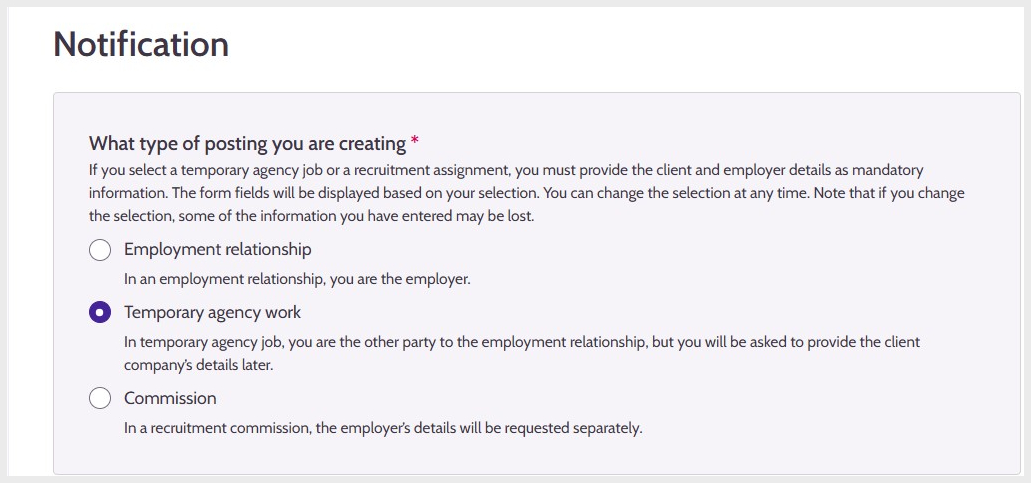
Picture 4: What kind of posting are you creating
In the Company information section, select the company name. If your company has several locations, select the correct one. Select your company’s line of business.
The company’s main location is always given as the default location. For companies operating in several locations, you must select the location for which the posting will be opened.
In the Contact details section, add the contact person and contact details of the presentation position.
Select Client Information. For temporary agency work, select the client, and for a recruitment commission, select the employer.
Once you are finished adding the required information, click Next.
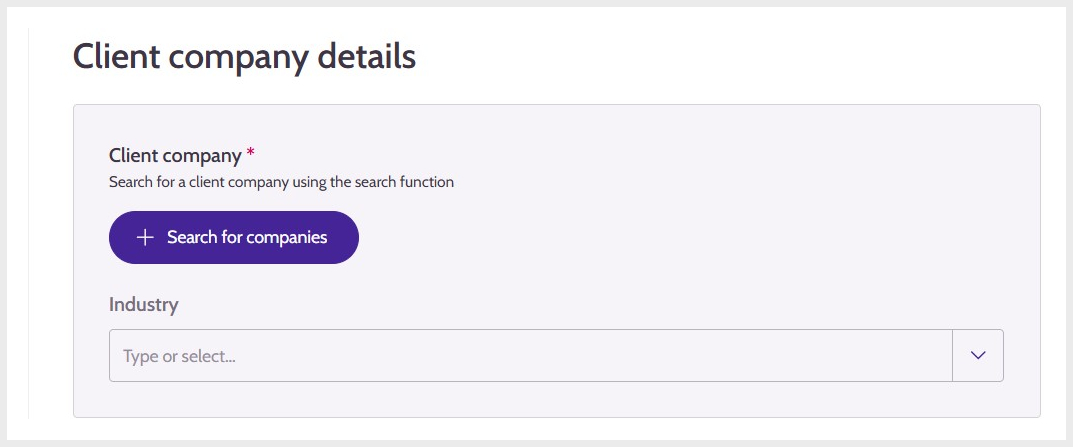
Picture 5: Client Information
Location
In an employment relationship, the municipality is selected based on the location address. You can change the location if needed if the place where the work is performed is not the same as the employer’s address.
In temporary agency jobs and recruitment commissions, the exact location of the place of work is defaulted to the address and municipality of the selected employer or client. You can change the location if needed if the place where the work is performed is not the same as the employer’s and client’s address.
Select that you understand that the presentation details will be displayed in Job Market Finland to users with strong identification in the Business E-services, and that you are responsible for ensuring that the company’s representatives with access to the presentation details have been instructed on the processing of personal data.
Select that you agree to provide feedback, i.e. report the outcome of the recruitment process for each presentation within the specified time limit.
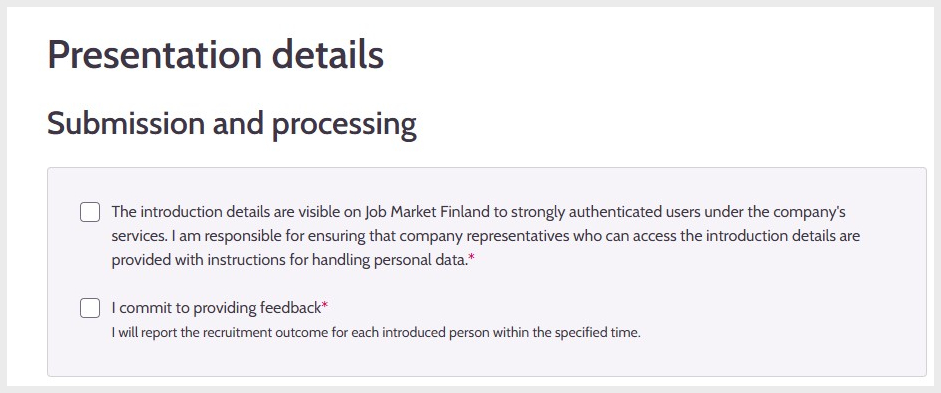
Picture 6: Provision and processing of presentation details
Specify when the work begins, how many applicants you intend to hire and how long the vacancy may remain open.
Once you are finished adding the required information, click Next.
Picture 7: Description and competence
On the Description and competence page, write the job title, job description and language proficiency required for the job.
Based on the description you have written, Job Market Finland suggests different occupations and skills. Select suitable occupations and skills. You can select one or several of each. If the suggestions contain no suitable keywords, you can use a free word search to look for occupations and skills.
Once you have selected the correct keywords, click Select keywords.
Add the primary occupation.
Select whether the work is suitable for people with partial work ability and whether you are interested in hiring applicants in the +55/+60 groups.
Once you are finished adding the required information, click Next.
Picture 8: Selecting the primary occupation
On the Skills requirements page, you can provide information about the requirements related to the job.
If licences and cards are required, select them and write additional information if necessary.
If driving licences are required, select them and write additional information if necessary.
Select whether a criminal record extract is necessary for work with children, older people or persons with disabilities.
Once you are finished adding the required information, click Next.
Picture 9: Provision of driving licence and criminal record extracts
On the Detailed information page, you can provide information about the form and duration of the employment relationship, details related to pay, and the workplace location.
Picture 10: More detailed information about working hours and pay
Check the information you have given on the Summary and submission page.
On the Summary and submission page, you can check that all the information you entered is correct. If any mandatory information is missing from a section, the missing information is marked in red. To add or edit the information, select Edit next to the correct heading. Once you have checked that all the information is correct and the posting is complete, click Submit.
The summary of the presentation position contains information about the locations of temporary agency jobs and recruitment commissions.
The summary provides the details of the employer and the client separately if the position is a:
temporary agency job, recruitment commission. This gives you a clear overall view of the employer is and who the client is.
Picture 11: Summary of the details added to the posting
When you are submitting the posting, you will be asked to confirm that the details are correct. If you want to return to review or edit the posting, click Cancel. If the posting is complete and you want to submit it to an expert for review, click Submit.
Picture 12: Confirmation before submitting the posting
After submitting the posting, you will receive confirmation that it has been received. The expert will review and publish the posting. The posting is visible to the employment authorities, which means that it will not be displayed in the Vacancies section of Job Market Finland. If you want to correct the details of the posting, you must contact the employment authority.
To close the confirmation notification, click Close. You will then be returned to the Presentation Positions page. The posting you submitted is displayed on the list and is marked Submitted. Once an expert has processed and approved the posting, the marking changes to Published.
Jobseeker profiles
Once the employment authority has found suitable applicants, you will receive a notification on the Contact Events page under the Business E-services section. In the event list, there is a section Jobseeker profiles. Select it for a list of the applicants proposed by the employment authority for the position. The same suggestions are also provided on the Profiles tab of the presentation position.
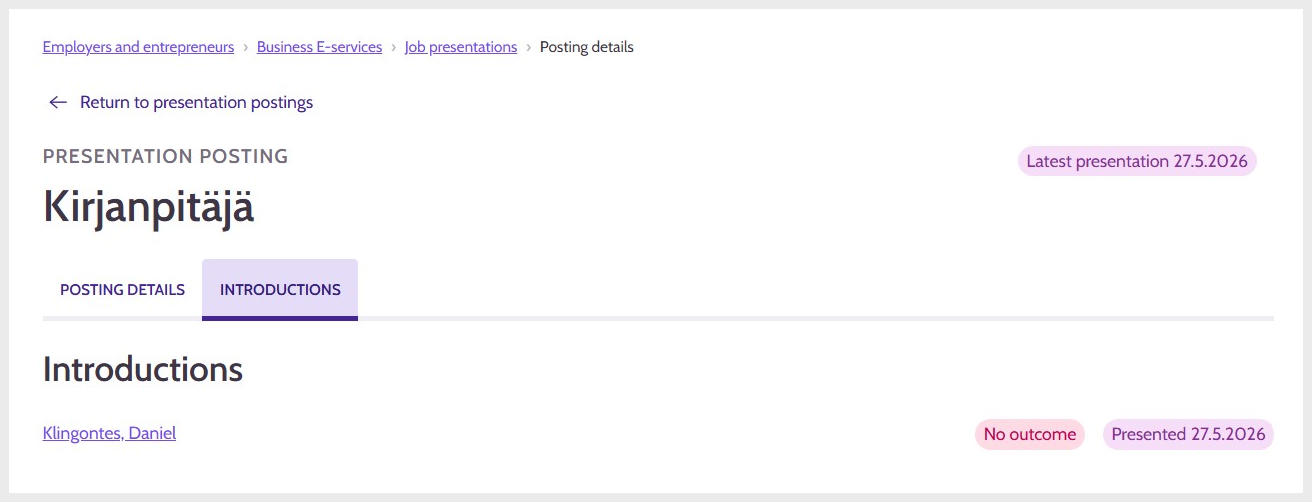
Pictures 13: List of applicants presented for the position
Select the applicant’s name to view their details. In the same view, you can also notify the applicants of the outcome of the recruitment process for them.
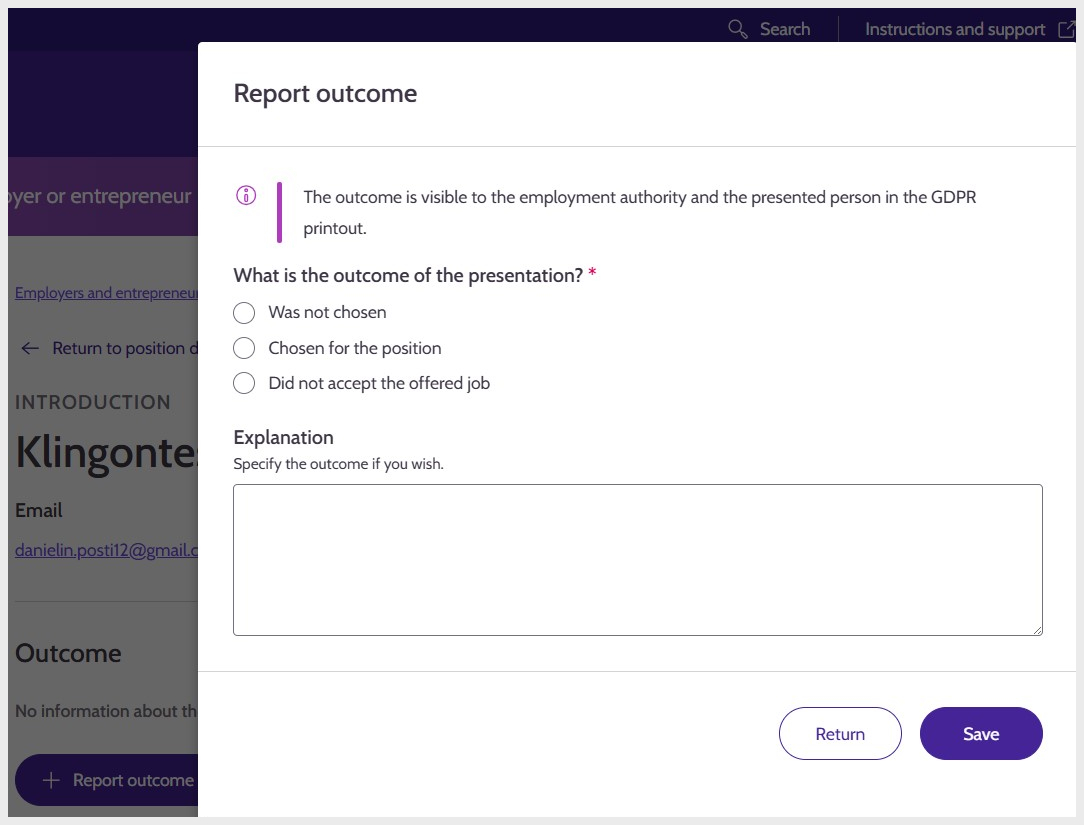
Picture 14: The applicant’s profile details and notification of the recruitment outcome
How to report the outcome of the recruitment process to the employment authority
When you want to notify the applicant of the outcome of the recruitment, select Report outcome in their profile details. Select the appropriate option. Optionally, you can provide additional information in the Details field.
To save the information, click Save. After this, the outcome you have reported will be displayed in the applicant’s profile. If you want to edit the outcome later, click Edit outcome.
In the applicant profile list, you can see who you have already notified of the outcome and who has not yet been informed.
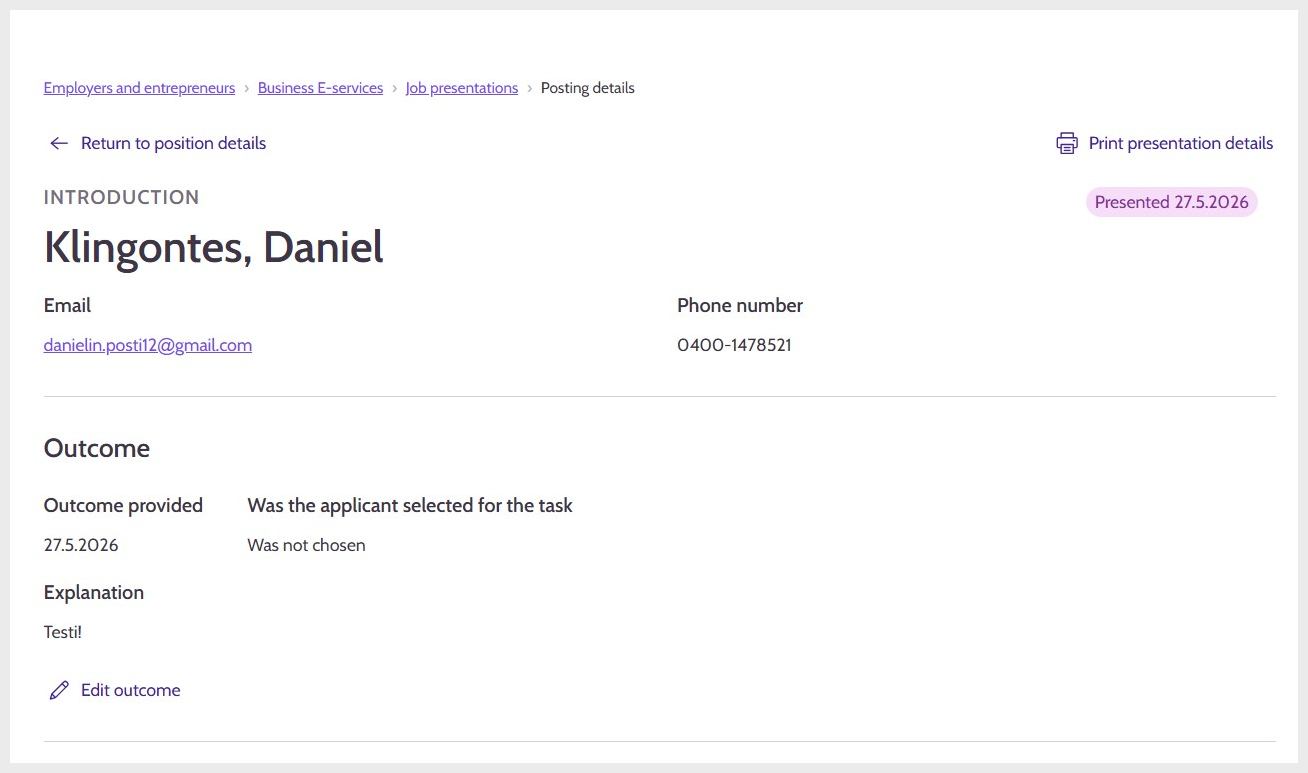
Picture 15: Outcomes shown on the list of presented applicants
Updated: